Showing posts with label how-to. Show all posts

Monday, 18 February 2013

Preparing a simple path for the laser cutter.

One of the most basic things you can do with the laser cutter is trace an outside path of a shape to be cut out from sheet material. Like the previous posting on laser cutting please speak to your friendly technician to advise you on the use of appropriate materials.

You will also need the line you draw saved at a specific colour and width, again check with the technician who will be running the job.

This method shown below is to draw the path freehand, using the Pencil Tool. This is a basic drawing tool that will automatically place Anchor Points at regular intervals. The downside is that it is not very accurate a drawing method and for accuracy you will need to edit and tidy up any lines afterwards.

1. Place the image you want to trace by using File, Place... and select the image.

2. Before you place the image you can select the checkbox allowing you to add the file as a Template.
This will lock the image, dim it slightly and create a new layer for you to draw into in one go.
Depending on the original size of the image you place you might need to resize it to make it bigger or smaller. If you do you will need to unlock this first in the Layers Panel. Re-lock it once you have made any adjustments as you don't want to draw on this layer or have it move.

3. With your new layer selected select the Pencil Tool and start to draw around your image.
You will probably find it quite difficult to draw an accurate line with the Pencil Tool and the line will look very shaky. It will appear this way until you release the mouse button at which point the line will smoothen out and look better.
4. The line will probably need editing so that it is in the correct position, ready for cutting.
You can redraw the line to change it but first you will need to check a couple of settings for the Pencil Tool.

5. Double Click on the Pencil Tool. This will open the Pencil Tool Options. Make sure Keep Selected and Edit Selected Paths are checked.

6. With the path you have just drawn, click and drag to redraw a new line. This will replace the original one. This can produce unpredictable results sometimes so be ready to Undo and try again. Reducing the Fidelity can help here.

7. If you need still smoother lines you can use the Smooth Tool which is found by click holding on the Pencil Tool or if you already have the Pencil Tool selected by holding down the Alt key.

Each time you draw over the existing path the line will become smoother.

8. Depending on the complexity of your shape you can edit this line as you go using the Direct Selection Tool or using the Pen Tool.

You will also need to think about making sure your lines are joined together and continuous ready for the laser cutter to follow. Use this blog entry for more info.

Tuesday, 12 February 2013

An easier way to draw. The Pencil Tool.

The Pencil Tool in Adobe Illustrator allows you to draw freehand paths that you can edit later on.
Some if not most will find this method of drawing easier that using the Pen Tool. The downside is that the line you end up with will need refining and editing to make it more accurate. There are settings for this tool that you can tweak to make life easier for yourself. You will also find that if you are drawing using a Wacom Graphics Tablet instead of mouse, the results will be better already.

The Pencil Tool (shortcut N) draws a line where you drag the cursor and will add Anchor Points automatically along its length.

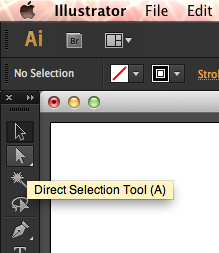
This line will usually need to be edited and refined using the Direct Selection Tool (shortcut A)

Hidden under the Pencil Tool is the Smooth Tool which will smooth the line you have just drawn with each pass. You can also access the Smooth Tool by holding down the Alt key when you have the Pencil Tool selected. This saves you time by not having to switch between one tool and the other.

If you double-click on the Pencil Tool you get access to the Pencil Tool Options. Here you can set the Fidelity and Smoothness of the line you draw. The higher the Fidelity, the closer your line is to your original line which creates more Anchor Points and the lower the Fidelity the fewer Anchor Points and the straighter  your line. Smoothness controls how much smoothing is applied to the line once you have drawn your line. The higher the value the soother the line and the lower the value the closer to the original line.
Experiment with these settings to get your preferred results.

Keep Selected and Edit Selected Paths can be helpful also. Keep Selected will keep the path selected once you have completed your line and if you have Edit Selected Path enabled drawing over the line a second time will change the path.

Tuesday, 13 March 2012

Using Live Trace to prepare for the laser cutter

The laser cutter needs to a path to cut along and it is Adobe Illustrator you use to make that path.
By using Illustrator you can make a path that is accurate and in exactly the right position but there is some preparation that needs to be done first.

The image you start with makes a big diference to how much work you have to do in editing or tidying up the result. The better the quality of the original, the better the tracing. A low resolution image from the internet will trace badly, not have enough detail and require you to tidy-up or redraw missing parts. It may help if open the image in Photoshop first to increase the contrast making the image easier to trace.

Important! This process is one small step in preparing your artwork for the laser cutter. It is important that you speak to the technician who will be helping you run the actual job to advise you on material suitability, time, availability etc. Basically can it be done as I expect?


1. Place your image into Illustrator using File>Place... and selecting the image from your computer.

2. With the image selected, open the Tracing Presets and Options (a small down pointing arrow) and select the Tracing Options...

3. Selecting this will open the following dialogue box. Here you can adjust settings according to the image you are using and the result you require. In preparing your image for use on the laser cutter you might want to start by duplicating the settings shown ensuring you are tracing Stokes and not Fills.

4. Depending on the size and resolution of the image it will process and show the result.
You can't edit the tracing until you have clicked on the Expand button.


5. The result you get might contain a number of different stroke widths and the laser cutter will need a single width line to follow, it will also make your editing task easier to see. With all the paths selected click on the Stroke Weight drop-down and select a small point size. This example is highly detailed and would not be suitable as it would burn away most of the material in the process. Again, speak to your friendly local technician for advice.


6. You will now need to spend some time deciding what parts to delete, what parts to keep and how to make a path that is suitable for use on the laser cutter.
If you double-click on the tracing with the Selection Tool (black arrow) you will enter Isolation Mode. With this mode you can edit individual parts inside the grouped object. You will know that you are in Isolation Mode by the grey bar that appears above your image. To exit, press esc on your keyboard or click on the left pointing arrow in the grey bar.


Tuesday, 14 February 2012

Fabric prints online

This looks interesting. Spoonflower, based in the US but will ship internationally and stock nine different types of fabric. What a good idea, I'm might give it a go myself.

Create seamless patterns online

Colourlovers.com has a nice page where you can create seamless auto-repeating patterns and let the rest of the community colourise them for you. As well as other colour related info.

Monday, 13 February 2012

Polaroid effect in Photoshop

Here are two different ways of creating a faux Polaroid effect using Photshop.
Polaroid 1
Polaroid 2
And here are some frames, you just need to remove the black inner and place your image behind.

Friday, 27 January 2012

Seamless repeating Mexican Pattern

Create a seamless repeating Mexican Pattern from DigitalArts Magazine bringing together some of the content from the Illustrator workshops for fashion students.

Constrain your drawing.

A helpful tip to enable you to draw at a specific angle. Think isometric.

Thursday, 31 March 2011

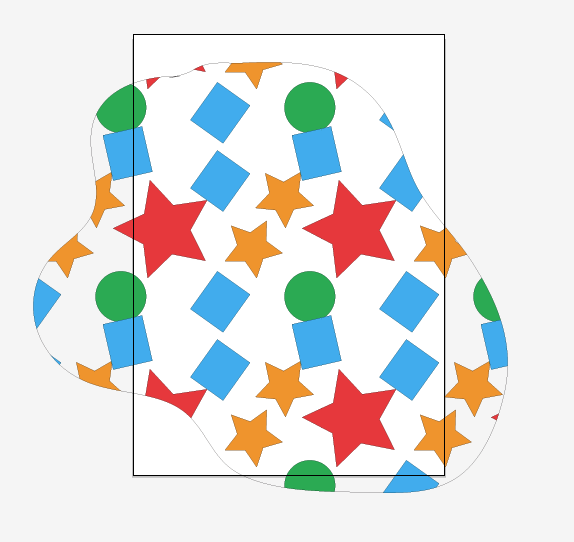
Creating Repeating Pattern Swatches

Make a new document.
Make a square of equal height and width.
This will be your guide square for the repeating pattern. The main body of the pattern should lie inside the square and overlapping the square will be repeated elements.

In the layers palette you will need to temporarily lock this layer.
Make a new layer, this will be the layer you will draw your pattern on.
When you draw your pattern elements think of how they will repeat from left to right and top to bottom.
Where the elements cross over the edges of the square this is where they will be repeated.

Start by concentrating on all the elements on the left that overlap the edge of the square. These will need to be copied over to the right. In this example the red star and one of the blue rectangles.
Click on one of the elements and select Object > Transform > Move...
You will be moving the element Horizontally the same width of the guide square, 200 mm in this case. If you select Preview you will be able to see where it will be moving to. Click Copy to make a copy of the element. Repeat with any other shapes crossing the left side of the guide square. Tip: you can quickly repeat the last transformation by pressing Cmd and D.

To move elements from right to left type -200mm
You can now concentrate on the elements to move from top to bottom. To do this you will need to type 200mm Vertical and click Copy. Again any elements to move from bottom to top will need to move -200mm
You should end up with an arrangement of elements overlapping the guide square repeating left to right and top to bottom.

You will now need to unlock the guide layer and select the square guide. You can do this all from the Layers palette.

Remove all of the guide square fill and stroke colour and ensure that this object is the back most object by selecting Object>Arrange>Send to Back.

Select all of the elements including the guide square and drag them into the Swatches palette.
You will see a new thumbnail appear here that you can now apply to any shape as a fill pattern.
Test your new pattern. If you need to make any changes you can edit the original and add it again.

Here is a much more in-depth tutorial on patterns from Digit Mag
and here is the The Adobe manual explanation of patterns.


Thursday, 24 March 2011

Effects, Alignments and Pathfinder video

Here is a short 8min video tutorial on using some of the Effects, Alignments and Pathfinder operations in Illustrator from a nice site, Method & Craft. He's quick so you may need to watch it a few times. Hopefully they will be adding more videos and tutorials soon.

The Pathfinder operations in particular I think will be most useful for creating more complex shapes in your drawings.

Tuesday, 15 March 2011

Templates in Adobe Illustrator

If you want to draw over an image as a template or guide Place the image by clicking File, Place.. and locate your image file.

Once you have resized it to fit your document, click in the Layers palette submenu and select Template.

This will in one hit lock your image and slightly reduce it's opacity.

Now you just need to create a new layer in which to draw on.

Thursday, 10 March 2011

Photoshop: Clipping Masks

So you have an idea of what a layer mask is and how it works (as illustrated below) and want to add another to your set of techniques.

The next one you might want to learn about is called a Clipping Mask.

A clipping mask allows you to show or hide selected parts of an image depending on the pixels above it.


Hold down Alt while click between the layers in the Layers palette. You need to be able to see the double circle cursor.
The Duck layer in this example has some transparent pixels. You can see this by the checkerboard design in the thumbnail behind the yellow duck.
The non-transparent pixels reveal the pixels of the layer above it. So the Kaleidoscope layer is clipped where there are no pixels in the layer below.

It might help to think of the pixels above being caught by the layer pixels below and everything else just falls away.

Here is the Adobe Photoshop manual explanation:
Clipping Masks

Wednesday, 9 March 2011

Photoshop: Layer Mask.

Rather than using the eraser tool to delete portions of an image (because once pixels are gone they are gone) why not use a layer mask.

Masks are a way to hide portions of an image on lower layers based on areas of black or white, including levels of grey.

Once you understand what the layer mask is doing and how it works you can achieve much more than just using the eraser tool.
The example below shows a layer mask that has been added to the top layer.
Click on the images to get a larger view.


The layer mask is the black and white thumbnail to the right of the image in the layers palette. It is important to notice when the layer mask is selected by the frame around it's thumbnail.


The black ink on the mask thumbnail can thought of as a hole that is cut through the image revealing the layer below.


This also works with values of grey. In the example above the gradient runs from black to white through grey values. So painting with grey ink will make the underlying image semi-opaque.
The mask becomes really useful once you realise that you removed something from an image you thought you didn't need. You can alway go back and paint with white to restore the image.

Look at this link for a fuller explanation of using the layer mask.


What is a layer mask?

View this entire Photoshop course and more in the lynda.com Online Training Library®.

Wednesday, 2 March 2011

How to create Colour Separations in Photoshop.

This blog entry gives you instructions on how to create a four colour separation (CMYK) from Photoshop.
This will enable you to prepare a screen for printing textiles.

Please follow the steps carefully as it is important to keep the images in registration with each other for the final print to work.

1. Open your image file
2. Convert it to CMYK if not already. (Image>Mode>CMYK) and flatten the image. (Layer>Flatten Image)
3. In the channels palette, select Split Channels from the pop-out menu in the top right hand corner. This will give you four separate black and white images each with Cyan, Magenta, Yellow or Black at the top of the window.

4. Save each file with a unique name. Preferably with Cyan, Magenta, Yellow or Black in the title.
5. You will now apply the halftone screen patterns to each of the images.
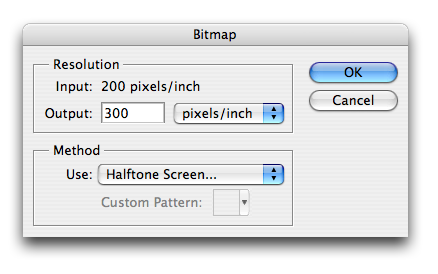
a. For each file go to the Image menu; select Mode; select Bitmap.
b. In the Bitmap dialogue box, select Halftone Screen and set the output to 300dpi.
c. You will then get a dialogue box asking you to enter the screen angles and frequencies and they are as follows. For each one select the shape as round.


6. Enter in these figures for each of the colour screens.

Colour: Frequency / Angle

Cyan: 31.622 / 18.434
Magenta: 31.622 / 71.565
Yellow: 33.333 / 0.0
Black: 35.355 / 45.0

7. Save your files.

8. Select one of your files and in the top menu bar click Select, All, then Edit, Copy to copy the image into memory.

9. Select New... from the File menu. This will create a blank page the same size, Bitmap mode type and resolution as the one you just copied.

10. Go to Image in the top menu bar and select Canvas Size. Add 3cm to both of the height and width dimensions here. This will give you an extra 1.5cm space on each edge to add some registration marks.

11. I have found a Bitmap registration mark for you to download here: http://bit.ly/i0DTwU
12. Clicking on this link will open the file: 14066_69_1.jpg. You will need to save this somewhere, ideally to the desktop of your machine.

13. Open this file, Copy and Paste it to your new blank document. It should appear somewhere on your page. Move this to one of the corners of the page using the Move tool.
14. Select Paste again (it will paste directly on top of the old registration mark) then using the Move tool move this new mark to another corner, complete the previous step putting a registration mark into each corner. Remember that in Bitmap mode layers are not supported so you will need to correctly place each of the marks before you paste the next mark. You should now have a blank page, slightly bigger than your image with little registration marks in each corner.

15. Save this file with the reg marks as “Blank page” or similar.

16. Now you will copy each of your Cyan, Magenta, Yellow and Black screens into the blank page with the reg marks.

17. Select one of your C, M, Y, K, screens and Select, All, Copy. Select the “Blank page” with reg marks image and Paste. This should paste the image into the exact centre of the blank page with registration marks around the edge. If it doesn’t for some reason, make sure that when you select Paste you can see the whole of the image if not it may move the pasted image off centre.

18. You will want to put a small letter C, M, Y or K somewhere in the margin to indicate which screen is which when you come to print them. Do this with the Type tool in the tool palette.

19. Save as… your file making sure you add Cyan, Magenta, Yellow or Black to the title to help you identify the file.

20. Reopen the blank original file with the registration marks and continue with the other screens from step 16. Remember to save each file with a unique name so you can go back and open the original blank file each time.

21. You are now ready to print!

Wednesday, 15 December 2010

The different ways to create a double line for stitches.

There are a few ways to create a double line, some editable some not. Here are the ways I have discovered so far. It's up to you to choose the best method for you.

You could use the Outline Path method:
This involves enlarging the line, outlining its path, giving it no fill and a coloured stroke.
Outline method

Or you could create a custom brush:
By making a square guide shape, drawing the pattern you want repeated inside, removing the stroke colour of the guide square and adding to the Brushes palette.
Brush method

Or using the Appearance panel create a line that has two stroke paths, one above the other.
Appearance method

Or use something called a Knockout:
Knockout method

These are arranged in order of difficulty from easiest to most complicated and some are more flexible than others.

Using the Appearance panel to make a dashed line

You can use the Appearance panel to change the attributes that make up the object. You are able to change the colour of the fill, stroke, it's opacity, it's colour mode and add effects to change its appearance.
So the example shown here has a 2pt black stroke and no fill.


You can also add multiple attributes, all in the same object. These attributes can be treated like layers.
Moved one above the other enabling you to change the stacking order.
So the example below is still one object, just with three individual strokes applied. Black at 5pt, Yellow at 10pt and Red at 20 pt.
The visibility of each layer can be turned on or off by clicking on the eye icon.


You can see here in the next image how I have managed to crate the illusion of a dashed line.
You will need to set the Dashed line above the solid line and make it slightly wider. If it's the same size even you will see a slight outline around the clear or white part.

The main problem with this method is that the dashed line will work when over a white background or whatever colour the dash is in, but not work if over a different colour. In this example the green shape.
You also can't have true stitch lines with rounded ends, only square end caps or Butt Caps.

To create a double stitch line you will need to reverse the layers. The dashed line below and the solid line above.


Masking in Photoshop, without masking.

How to mask without masking in Photoshop by Russell Brown

If you have a chance to check the Russell Brown website. He used to work for Adobe Systems and knows his stuff. You can also see his tutorials here at Adobe TV.

Saturday, 4 December 2010

Starting from scratch...

So you have a flat to draw and are stuck for where to start.
Try this:

In reality the garment is made up of separate shapes of fabric. The sleeve is going to be a separate shape, as is the cuff, as is the front panel and the collar stand etc. So think of the illustration as being made of separate drawn shapes. Some shapes can be placed on top of others and some below. The ones on on top can hide the ones below.

A frequent misconception is that when drawing like this some feel you have to make the drawing in one continuous line from start to end. But when you draw with pencil on paper, you take the pencil off of the paper, place it somewhere else, continue and so on. Breaking the drawing down to parts can make it easier to understand.

Wednesday, 1 December 2010

Getting a handle on the Pen tool.

Learning how to use the Pen tool in Adobe Illustrator can appear to be a bit of an uphill struggle sometimes but persisting and practicing will pay off eventually. Within a short space of time you will be able to draw much quicker and more accurately.

Remember the curve has three parts to it. The anchor points, the line and the direction handle. Without any direction handles the line will be straight.
Where you do have a direction handle it pulls the curve toward it, changing it's shape.


You can think about the curve made from a wooden board, two nails and elastic stretching between the each.
To practice drawing with the Pen tool, single-click with the mouse to draw straight segments.
Or click-hold and drag to create the direction handles and curve lines.

Have a look at this comprehensive guide to find out all of the tips and shortcuts for this tool.
Comprehensive guide

Here is an exercise to practice with.